Adding subscribers to a mailing list
There are several ways of adding subscribers to the system and to mailing lists:
Adding a single subscriber
Importing from an Excel file
Through a subscription form
Adding subscribers by a search feature
Selective addition of subscribers
Adding a single subscriber
1. Go to the "Subscribers" tab and choose "Add Manually" under the "subscribers" heading in the menu on the right hand side. If this is an existing subscriber in the system, you can filter it out from all subscribers and click on the "Edit" button.
2. Fill out the subscribers' details.
3. In order to add the subscriber to a mailing group choose the "add subscriber to mailing list" option.

4. Choose the mailing list that you wish the subscriber to be added to, click "add" at the bottom of the card.
Adding subscribers using an Excel file
1. First you need to export the e-mail address into an Excel file (see the guide to "Exporting subscribers from personal mailbox" for more details) or create an Excel file with e-mail addresses and subscriber information under the relevant fields. (The first row is the title row).
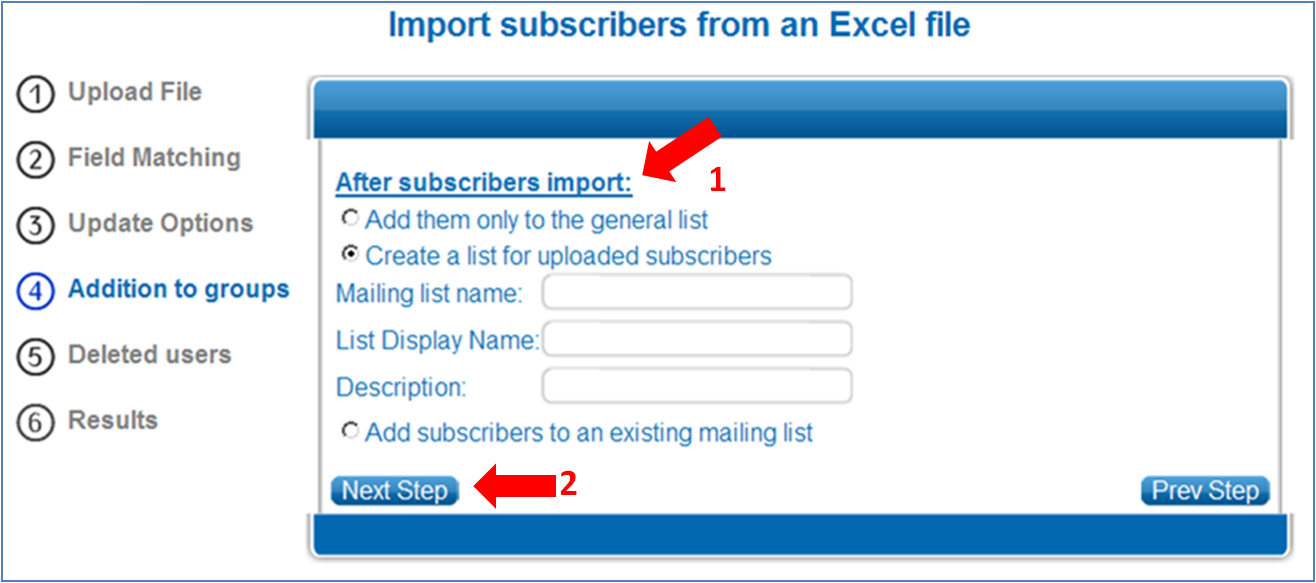
2. Import the Excel file (see the guide to "Importing subscribers from an Excel file" for more details). During the file import process you can choose where to add the subscribers – to "All subscribers", to a "New Mailing List" or to an "Existing Mailing List".
Adding a subscriber to a list using a subscription form
1. Create a mailing list. (See the guide to "Creating a mailing list").
2. Go to the "Subscribers" tab and under "Add Subscribers" in the menu on the right hand side choose "Signup Forms".
3. Create a subscription form (see the guide to "Creating a subscription form") and define the mailing list which the subscribers will register to through the subscription form. (You can choose more than one mailing list).
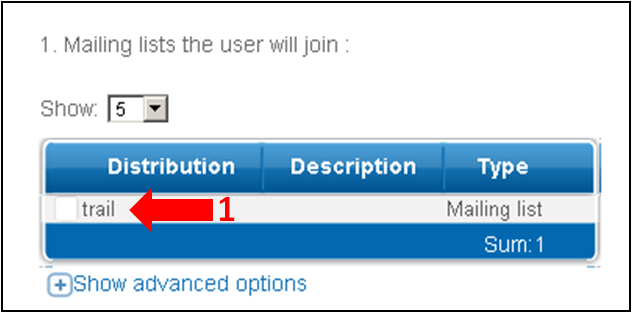
Clicking on "view advanced options" will allow you to select the mailing list subscribers will be removed from through the subscription form.
Adding subscribers by using a search feature
There may be times you will wish to combine into one group all the subscribers that meet specific criteria (e.g. subscription date).
1. First create a mailing list or a dynamic group.
2. Go to "advanced search" in the "Subscribers" tab. Define the relevant search feature and click "Search". Alternatively, you can manually select subscribers from a list of all subscribers ("show all subscribers")
3. Mark the subscribers you want to add and click "Add selected users to mailing list" to add the subscribers to a mailing list or "Update parameters for segmentation group" in order to add subscribers to a dynamic group.
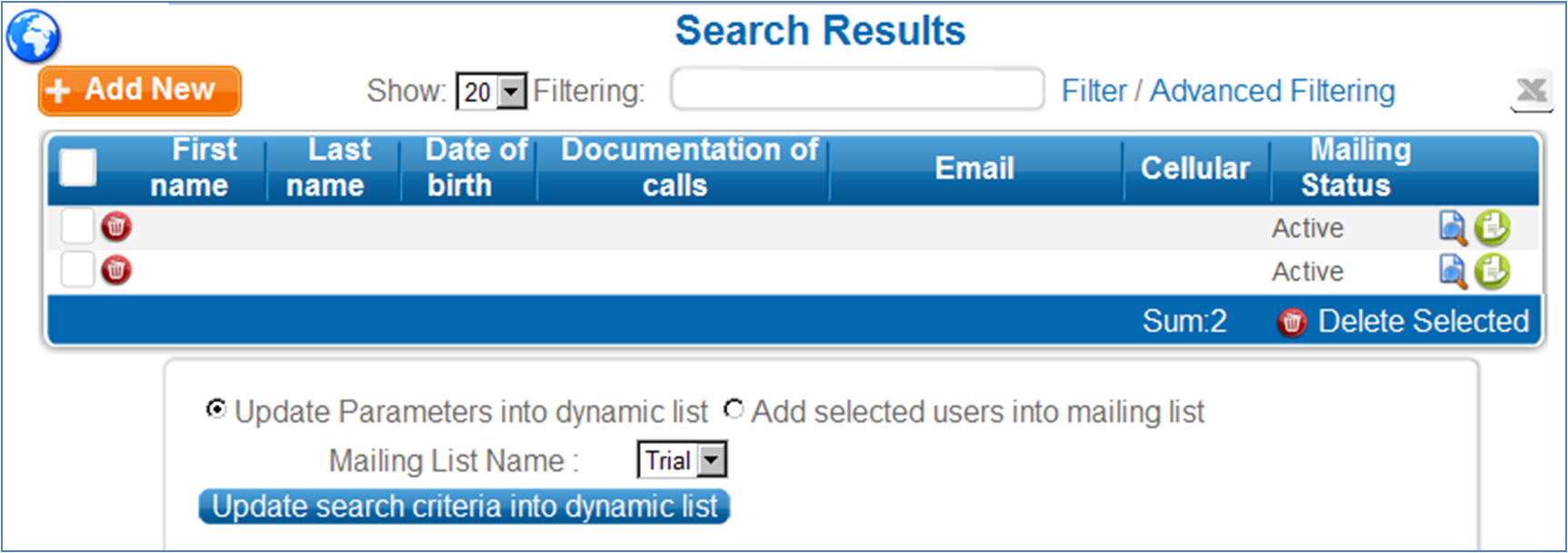
4. Select the relevant group name and click on the Add button.
Selective addition of subscribers
1. In the 'Subscribers" tab select "Mailing Lists".
2. Under the "Subscribers " tab select "view/update"
3. Click on the "Add To List" button at the corner of the table. A window to select subscribers will open.
4. Filter and mark the subscribers that you want to add to the group.
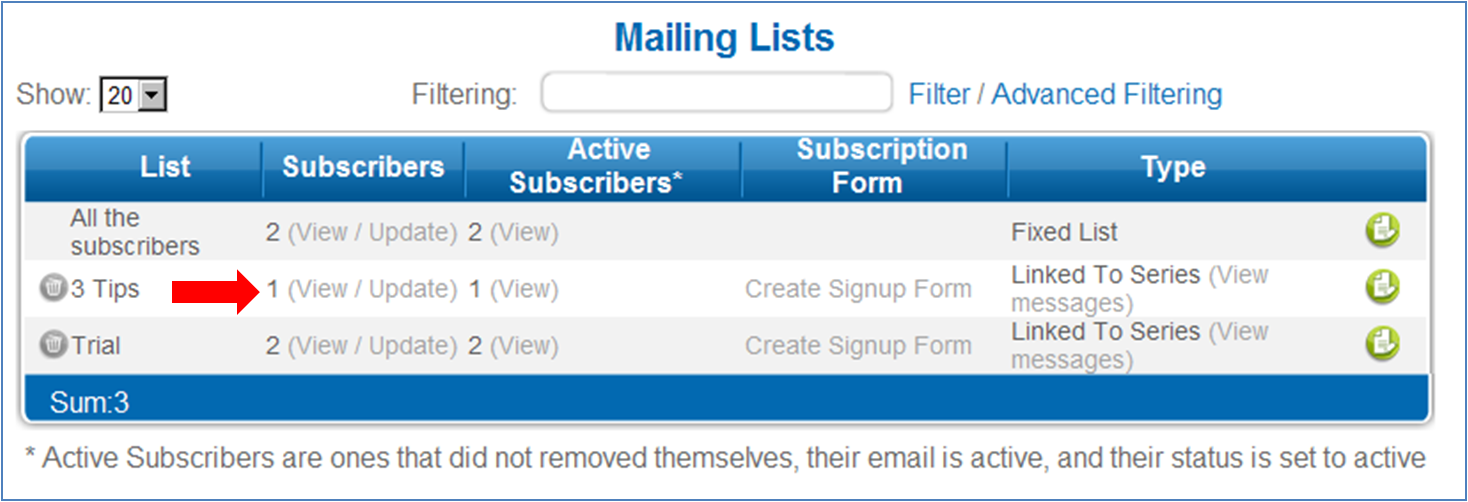
5. Click on "Add Users To Mailing List"
|