Creating a dynamic List
One of the advantages of the eMarketing system is it the option of creating dynamic lists according to properties and the combination of this feature with the manual option of adding or removing.
Often essential but in most systems does not exist.
We will first briefly explain the features of such a list and then go on to explaining the steps to add such a list. Example:
Imagine a situation in which you are managing a list of 3000 subscribers, of which 1000 are club members who receive discounts.
When you define a "club member" field of the "Yes/No" type you will be able to create a dynamic list that includes only those defined as "Yes" and in the future if some of the subscribers cease to be club members because they have ceased paying you will be able to change the "Club member" field in the subscribers' card to "No' and automatically they will no longer be listed in the "Club members" list.
If a subscriber is defined by the "Club member" criterion in other lists, the changes will occur automatically in all lists.
However in a manual list (described below) you will have manually to remove the subscribers one by one from all lists that they have been added to.
1. Creating a dynamic list
2. Choosing properties for segmentation
3. Manual addition of users
Creating a dynamic list
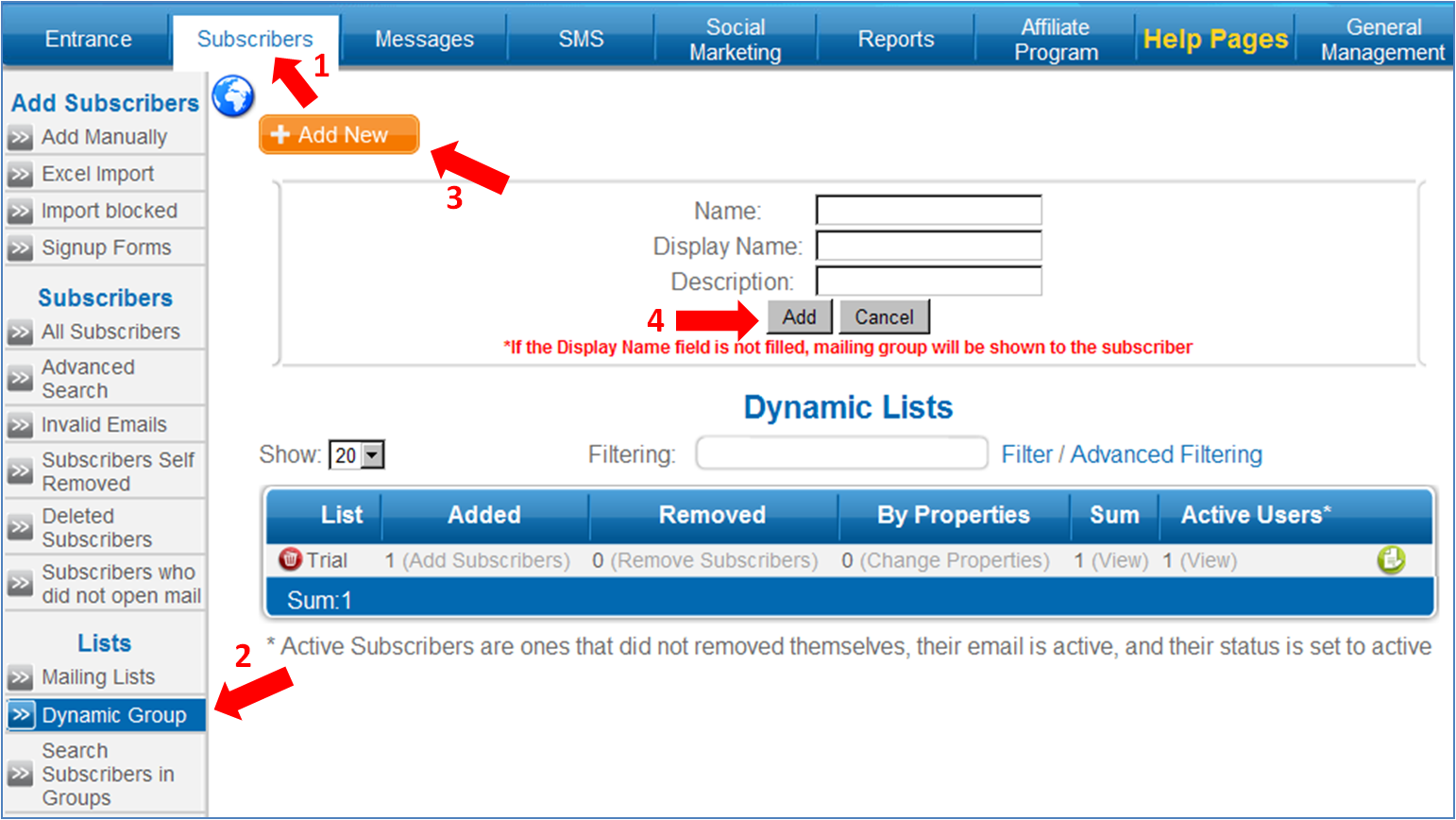
1. Go to the "Subscribers" tab and under the heading "Lists" in the menu on the left hand side click on "Dynamic groups".
2. Click on "Add new"
3. Give the group a name. You can also add a description to the list but it is not mandatory. Click on "Add"
Choosing properties for segmentation
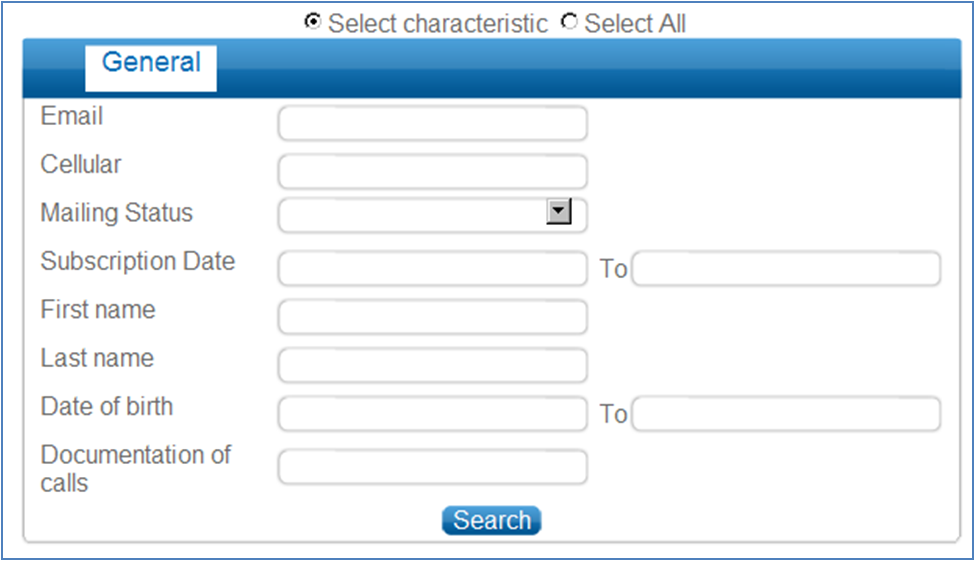
1. Click on "Select properties"
2. Fill in the fields according to how you want to segment them in this group (for example "Yes" in the "Club member" field).
3. Click on "Search" (the system locates all subscribers according to the fields you filled in.
4. Click on "Update search criteria into dynamic list"

5. Now whenever a subscriber is defined as a club member they will automatically be added to this group. (You can always re-define the properties of segmentation)
Attention – you can remove a subscriber that is in this group according to the properties you defined. You can remove the subscriber manually or by clicking "remove subscribers' and removing the subscriber from the list.
Manual addition of users
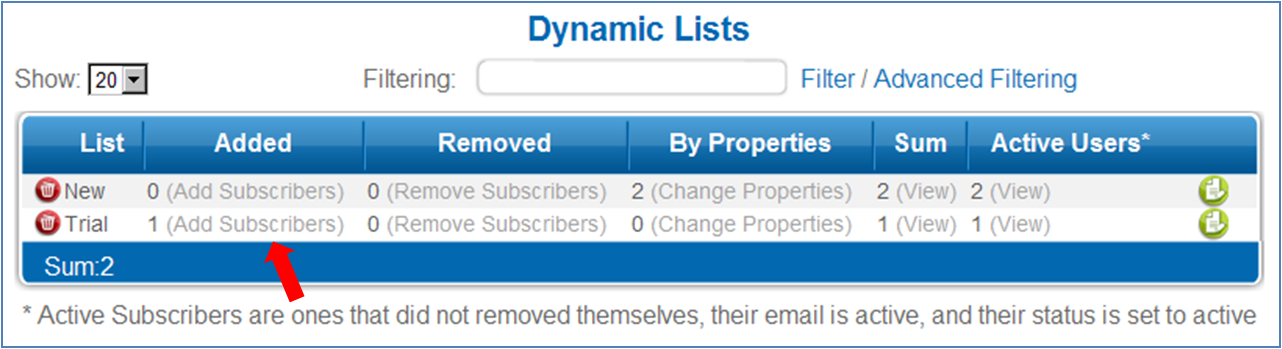
1. In "Dynamic groups" select "Add Subscribers" (which is in the "added" column next to the number of subscribers added.
2. Mark the subscribers you want to add to the dynamic group and click on " Save Selected Subscribers To list"
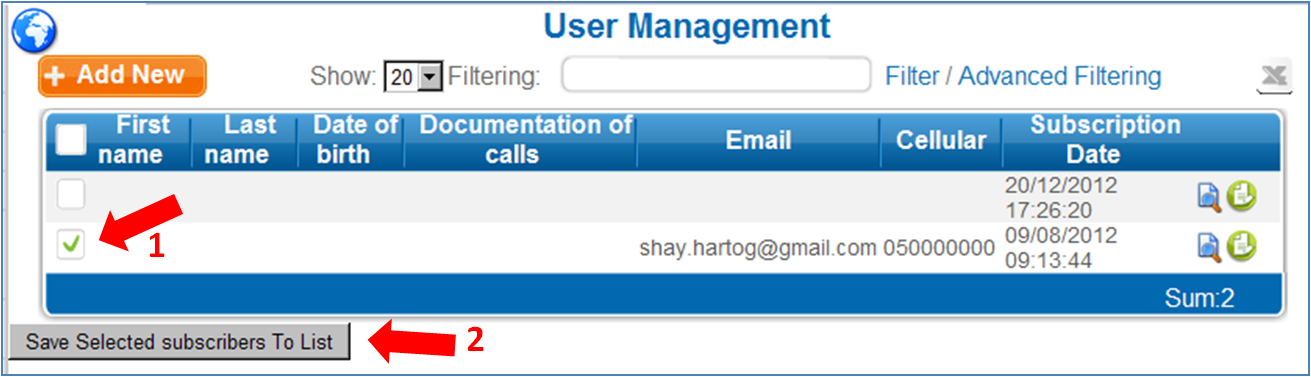
- Attention – A subscriber that was added to a dynamic List manually can only be removed manually.
- You can always add or remove subscribers by clicking on "Add subscribers"
|