Transfer link from list to list
A transfer link from one list to another is an advanced option in the system – the link allows a subscriber to choose to move from one mailing list to another or to be removed from a mailing list.
For example in a situation where you would like to send an invitation to receive a series of specific messages:
1. Create the message content. (Preferably including an explanation for operating the link).
2. Position the cursor where you want to add the link.
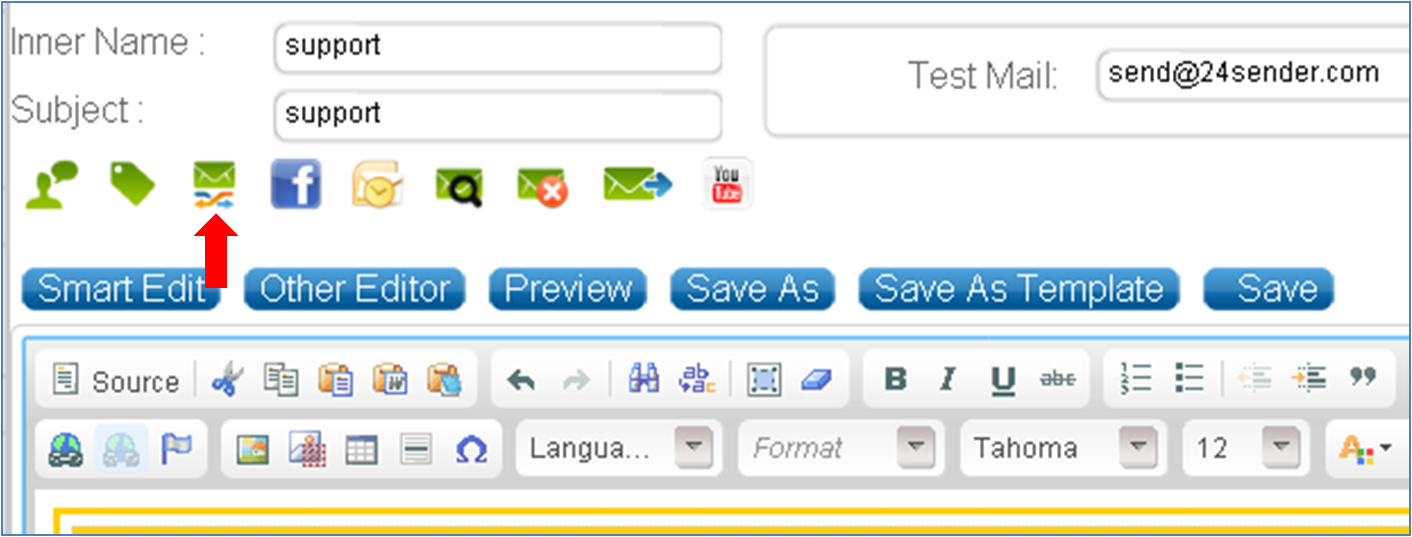
3. Select "User transfer link" from the advanced options' icons, a window will open to create a link.
4. Select the list from which the subscriber will be removed (usually this will be the list to which the message is sent).
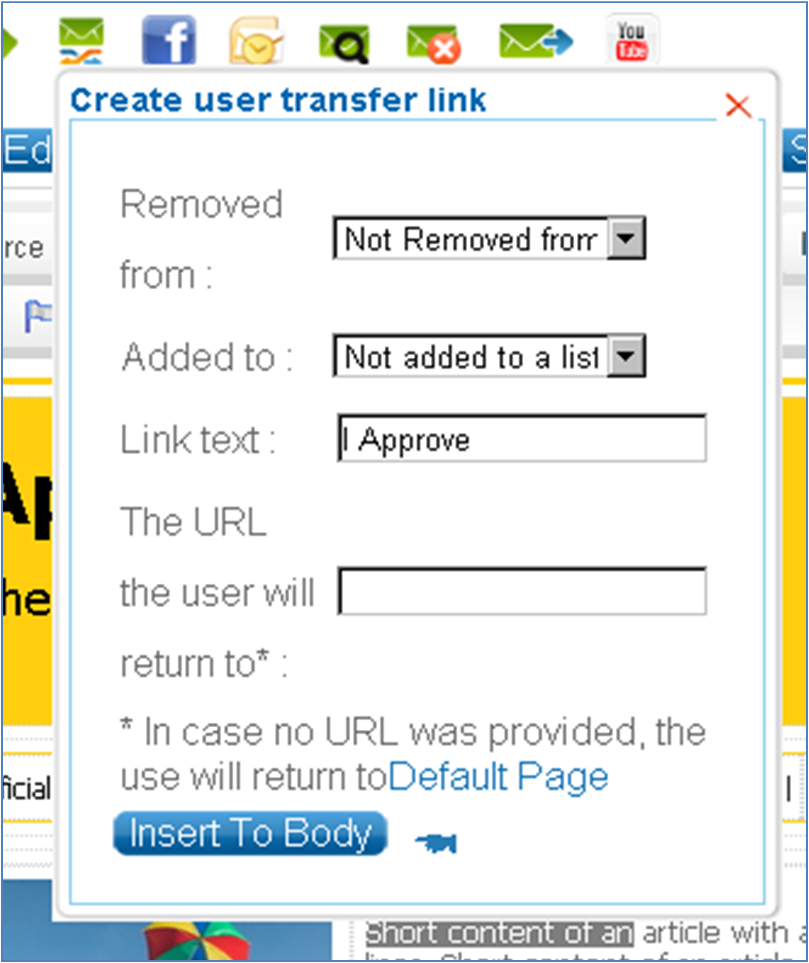
5. Select the list to which the subscriber will be added after clicking on the link.
6. Enter the link text – the text itself will be a "button" (for example – "click here").
7. Enter the URL (or landing page) that the subscriber will be referred to after clicking on the link (if you do not enter the URL the subscriber will be referred to the default page).
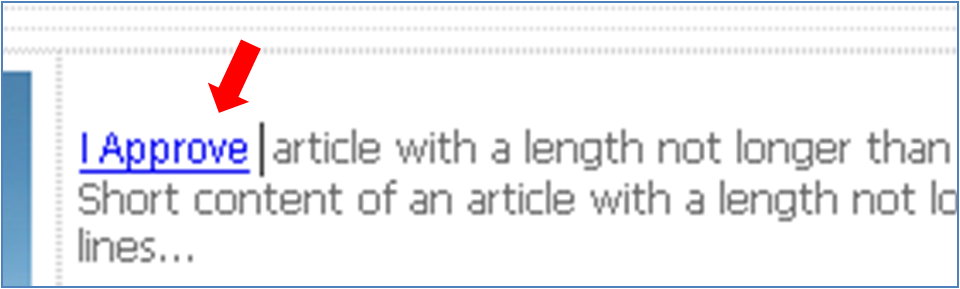
8. Click on "Insert to body" and the link with the address you entered is ready. A subscriber that will click on the link will automatically be moved to the list selected.
|