Adding an image to a message
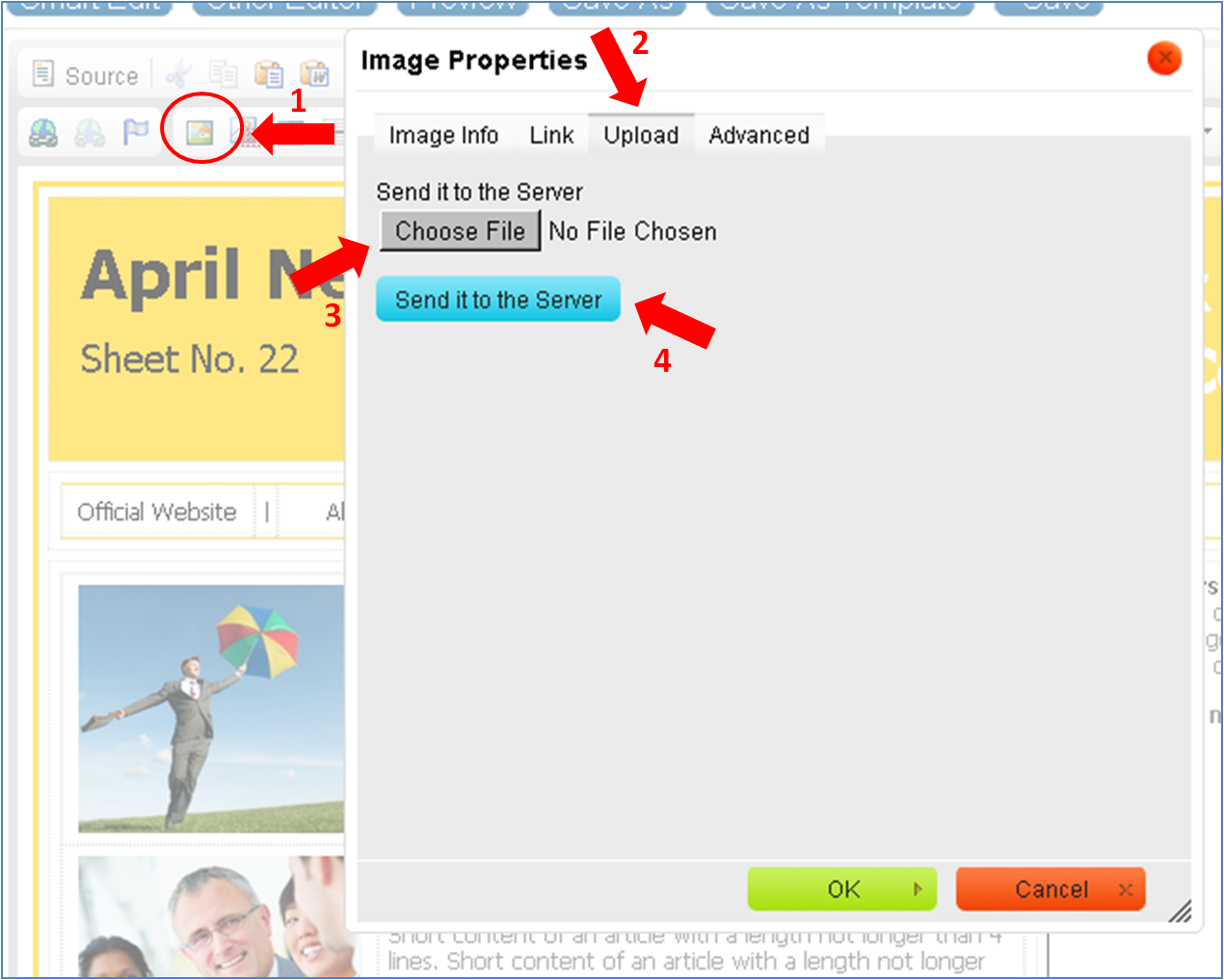
1. Click on the "Image" button to upload images from your computer. (Top left hand button on the tool bar).
2. Click "Upload" and then "Choose file".
3. Select the image you want to upload and then click "Send it to the server".
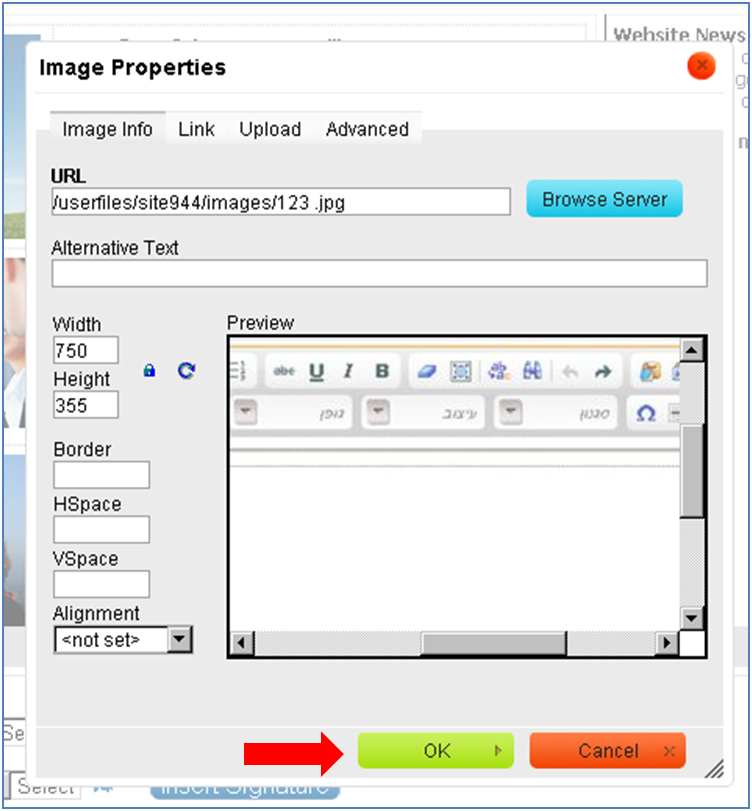
Click "ok" to finish.
Note – It is important to upload an image under an English name without spaces, otherwise e-mail providers like "Gmail' will not display the image.
4. In order to change details such as image size, frame and alignment, you can double click on the image and change the settings in the "Image properties"
Important notes-
- The maximum image size that can be uploaded is 10MB
- The maximum image height that can be uploaded is 1700 pixels.
- Different e-mail providers filter out background images.
- If you are using a prepared template you will have to first delete the image/text appearing in it. To upload follow steps 1-4.
- If you wish to add an image that has previously been uploaded you can click on "Browse Server"
Image files that can be uploaded
"gif", "jpeg", "jpg", "png"
Flash files that can be uploaded
"swf", "fiv"
|