Adding an anchor to a message
An anchor is a link to a specific location on the same page.
For example: the table of contents at the top of a newsletter, an article located in the e-mail body or at the bottom.
Creating an anchor
1. Position the cursor at the point you want to refer the reader to (e.g. next to the article title)
2. Select the "Anchor" in the tool bar (flag shaped icon ) )

This opens the "Anchor properties"
3. Give the anchor point a name.
It is advised to give the anchor a one word English name that characterizes the point/text you are referring to.
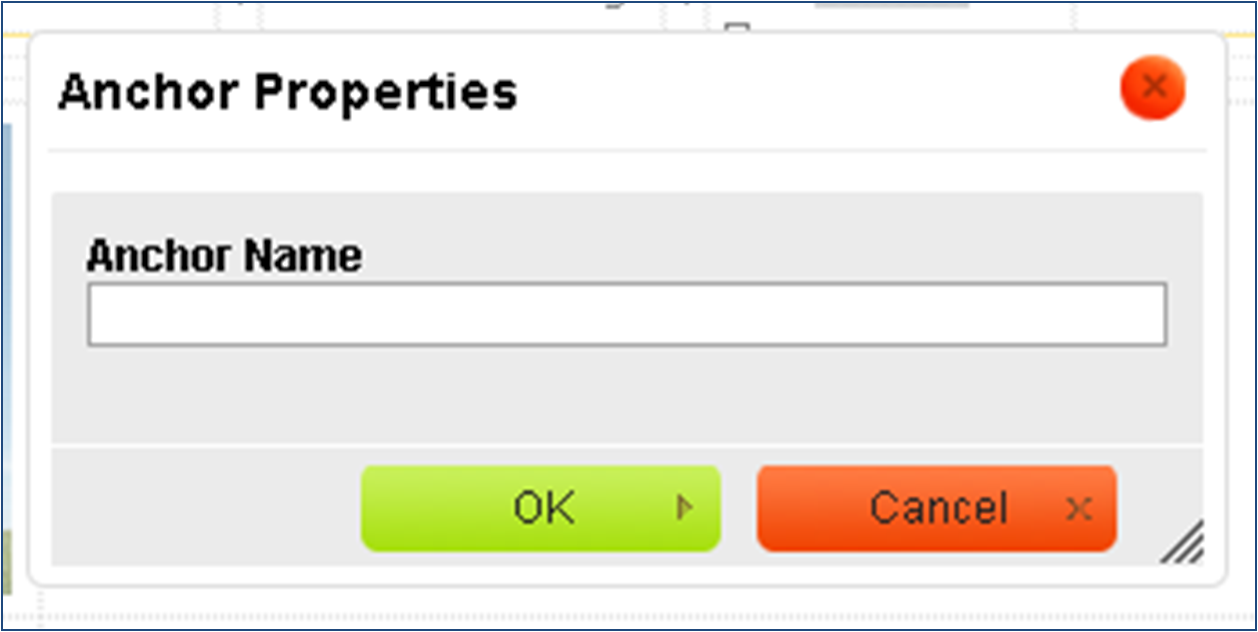 4. Click "ok" to finish. You will see a small icon of an anchor which marks the anchor point.
5. Go to the word/sentence that you wish to turn into a link and mark them.
6. Click on Link(
4. Click "ok" to finish. You will see a small icon of an anchor which marks the anchor point.
5. Go to the word/sentence that you wish to turn into a link and mark them.
6. Click on Link( ) icon in the tool bar ) icon in the tool bar
 7. In the window that opens set the link type – "Link to anchor in text"
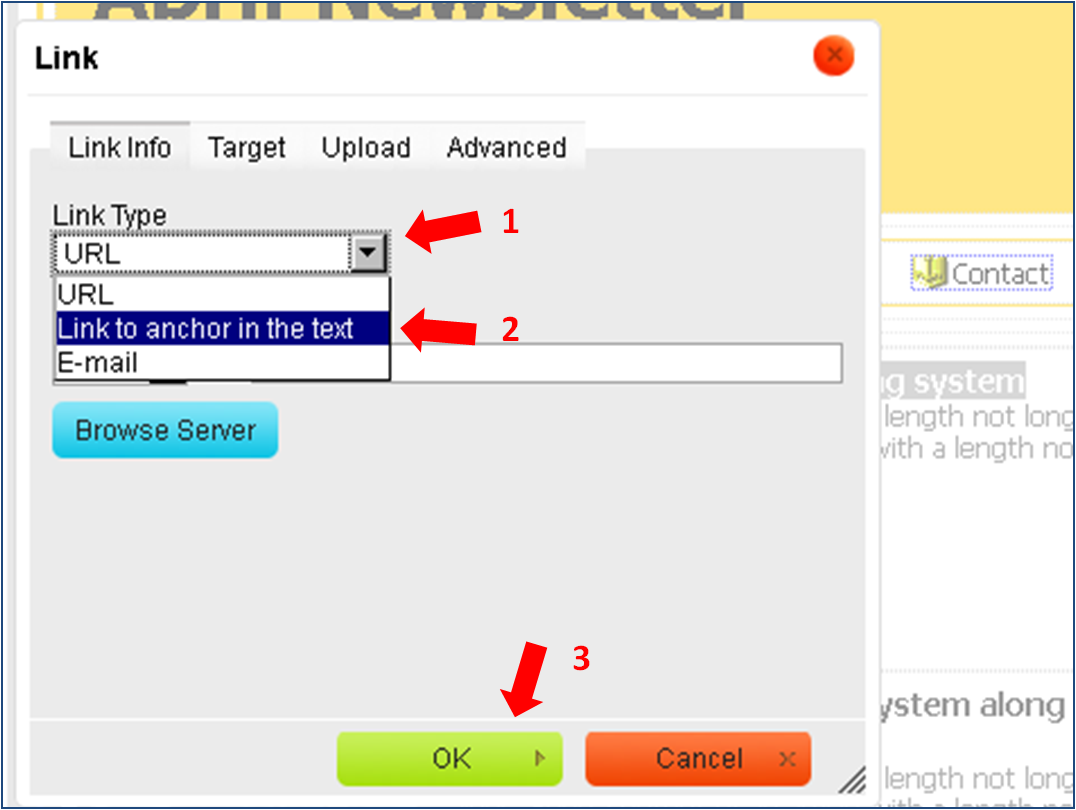 8. Select the anchor name you created in step 3 and click "ok" to finish
The title became a link:
 Clicking on the first title in the message will immediately move readers to the "second title" that is anchored.
Please note - If you would like to remove the underline under the link, right click on the link and select "Link properties".
Clicking on the first title in the message will immediately move readers to the "second title" that is anchored.
Please note - If you would like to remove the underline under the link, right click on the link and select "Link properties".
Then click on "advanced options".
Enter in the style box "text-decoration: none" (without spaces) and click on "ok".
|