|
|
Creating a Landing Page
Landing pages can be excellent tools in order to bypass different mail box restrictions without conceding on important extensions (for example: subscriber forms, background photos, video clips, Etc) and without overloading the business website.
Moreover, a landing page can be used for various networks such as social networks and funded advertising (Adwords)
1. Creating a Landing Page
2. Landing page uses
3. Useful additions
Creating a Landing Page
1. In the "social marketing" tab, choose "Landing pages" in the menu.
2. To add a new Landing page click on the "add" button.
To create a copy from an existing landing page, click on the "create copy" button.
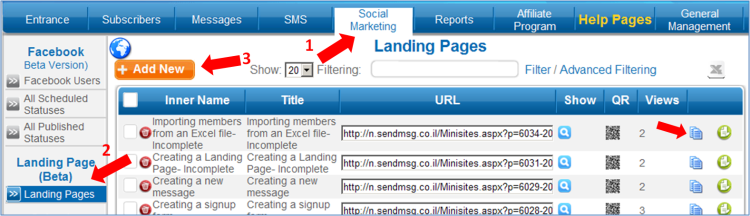
3. Give the landing page a name and a title. The title will appear as the tab name when viewing the page.
4. Create the content.
*It is possible to import Html templates, to assimilate various files, to create links, forms and more.
Everything that can be done in a website can in fact be done in a landing page.
For advanced options use the additions to landing pages manual
5. Save the landing page
6. In order to view the landing page, click on "view page". There is a similar button in the primary landing pages menu.
Landing page uses
1. To view the page link click on the "social marketing" tab and choose the "landing pages" category.
All the landing pages you have created will appear along with relevant details about them.
2. Mark, copy or paste the link in the message or any where you choose.
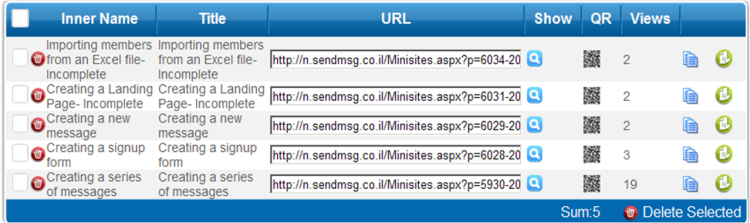
3. In this page you can see the amount of views of the page
4. In order to edit details in the landing page click on the "edit" button.
Useful additions
Adding a YouTube video
1. Go to the video on the YouTube site.
2. Copy the link at the top of the page
3. Position the cursor in the desired place on the page and click on the YouTube button

4. Paste the link in the URL line that appears and click "ok"
Adding a subscriber form
1. First it is necessary to create and save the form. Use the creating subscriber form manual.
2. When editing the page, position the cursor in the desired place on the page.
3. Choose the relevant form. The design can be changed when editing the form.
.png)
Important Note! Adding cells to the form and entering fields other than through creating a form (in other words using the editor) will not permit the information to transfer to the system and may interfere with the integrity of the form.
QR Code (Barcode for smartphones)
The code is for distribution and scanning by smartphones that support the application. Scanning with the smartphone will lead the person performing the scan directly to your landing page.
Attention! Every landing page has a unique barcode.
1. Click on the QR Code button in the landing page menu. The code will be shown in a different window.
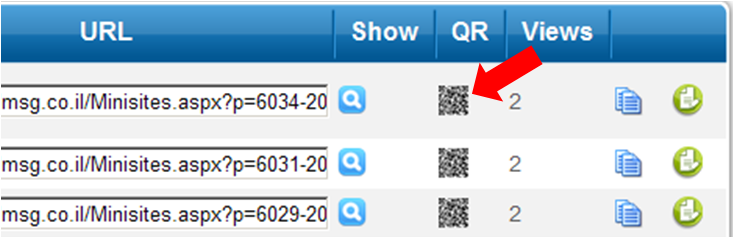
2. Click the right button with your mouse on the barcode image and choose "save image as". Give the image a name and save it in the file you prefer.
3. Now you can print the barcode image, add it to brochures or business cards, distribute it on facebook and any other advertising medium.
Attention! A barcode that is too small may not be read correctly by some of the smartphones that are available today.
- |
|
|
|
|
|
|
|
|
|
|
|
This page is presented using Sendmsg - A newsletter distribution system.
|
|